
SINU Moodle (eLearn)
Student Enrolment Application Guide
How to apply for unit enrolment on elearn.sinu.edu.sb
NOTICE: Unit Self-Enrollment Available
Dear Students,
Self-enrollment applications for your units can now be submitted through Moodle. Please be aware that your units will not become visible on your account until your request has been formally reviewed and approved by the Moodle Team.
We kindly ask that you do not submit duplicate applications while awaiting review. Your request will be processed as soon as possible.
Thank you for your understanding.
This guide walks you through submitting an online enrolment application for your units on the SINU Moodle platform. Once you upload a copy of your Enrolment Confirmation to a unit, the Moodle team will review and approve your application - no need to queue at the office. Each step below includes a screenshot so you can follow along exactly.
Before you begin, have ready:
- Your Moodle username (Student ID) and password
- A digital copy of your Enrolment Confirmation (PDF, Word, or image file - maximum file size 1 MB)
- The unit code(s) you are enrolling in, as listed on your Enrolment Confirmation

Scan to open
elearn.sinu.edu.sb
Getting started
Steps 1-5: Find your unit
Log in to your Moodle account
Go to elearn.sinu.edu.sb in your web browser. Click Log In in the top-right corner, then enter your Student ID and password.
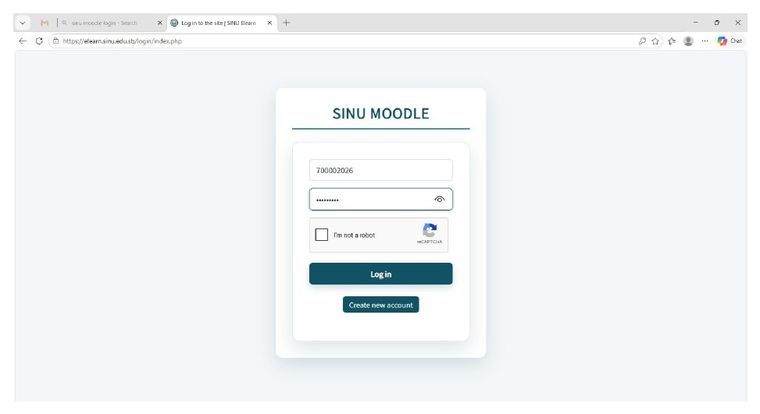
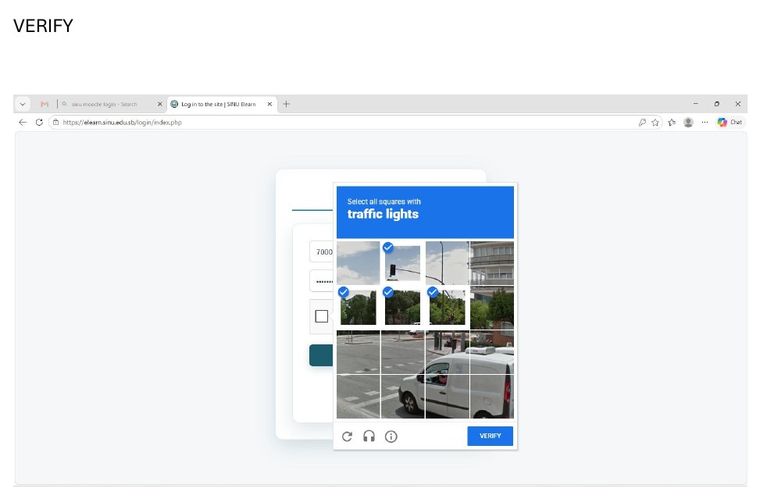
Complete the reCAPTCHA verification
Tick the “I’m not a robot” checkbox below the password field. If prompted, complete the image verification (e.g. “select all squares with traffic lights”) and click Verify.
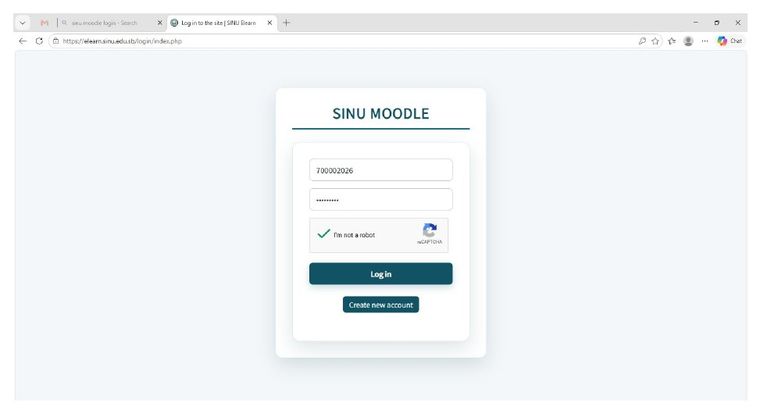
Click Log In
With the reCAPTCHA verified, click the Log In button to access your Moodle account.
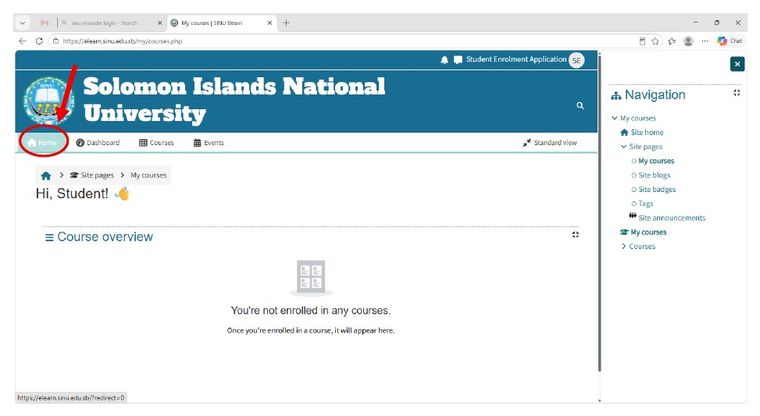
Go to your Moodle homepage
Once logged in, click Home in the top navigation menu.
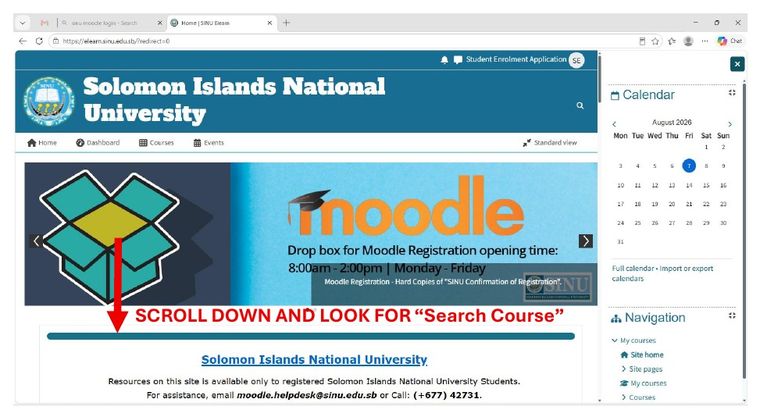
Scroll down to the course search
On your homepage, scroll past the announcements banner until you see the Search Courses box.
Finish your application
Steps 6–10: Apply & confirm
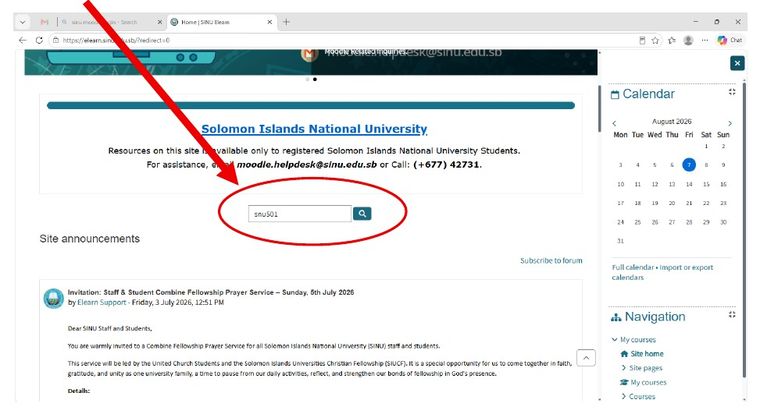
Search for your unit
Type your unit code (found on your Enrolment Confirmation, e.g. SNU501) into the Search Courses box and press Enter.
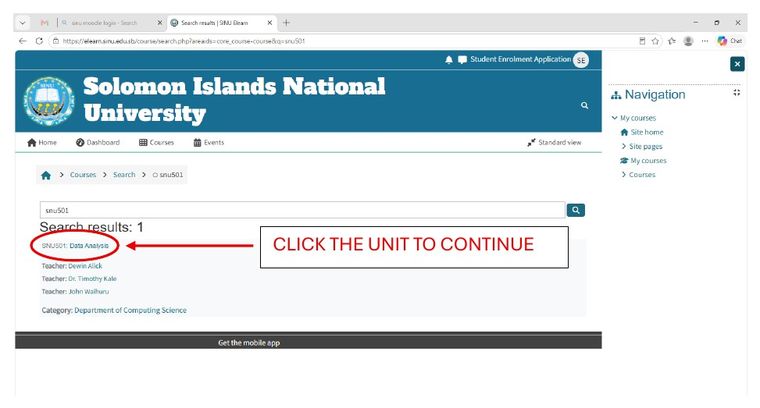
Select your unit from the search results
Click on the unit name in the search results to open its enrolment page.
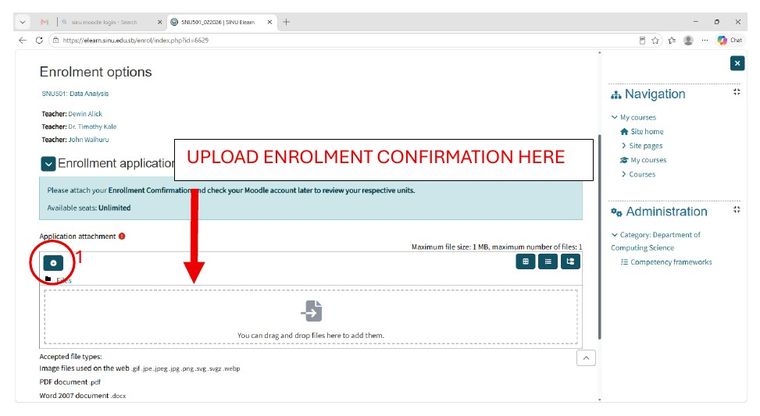
Attach your Enrolment Confirmation
Expand Enrolment Application, click the attachment icon, choose Upload a file, select your file and click Upload this file, then click Apply. Accepted: image, PDF, or Word file - max size 1 MB.
Review or withdraw your application
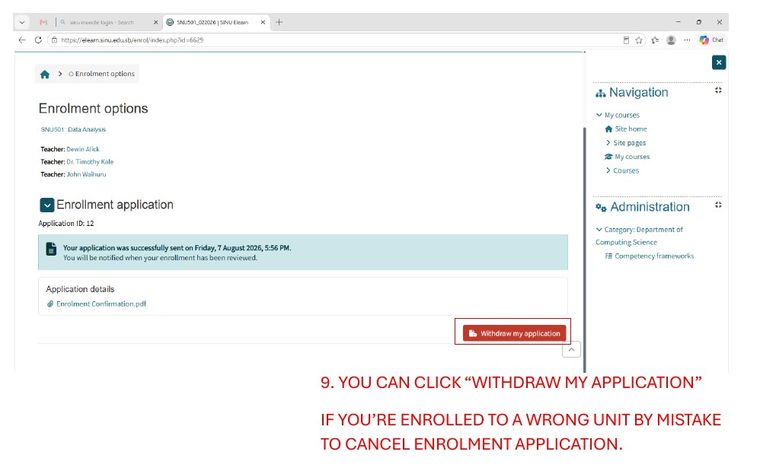
After submitting, you’ll see your Application ID and attached file. Selected the wrong unit? Click Withdraw My Application to cancel before it’s reviewed.
Check your enrolled units
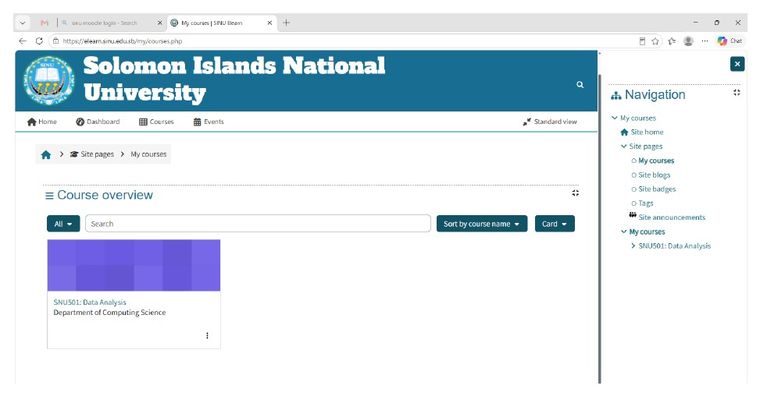
Once approved, your unit appears under Course Overview on your homepage. Repeat Steps 5-9 for each additional unit.
Need help?
| Phone | +677 42731 (8:00 AM - 4:30 PM, Mon - Fri) |
| In person | 8:00 AM–12:00 PM, Tuesdays - Thursdays |
| moodle.helpdesk@sinu.edu.sb |
SINU Moodle (eLearn) · Email: moodle.helpdesk@sinu.edu.sb · +677 42731